 TapClip
A simpler workflow
Stop adding the same tags and Project after every Notion save
Save an article. Open Notion. Pick the same tag again. Sound familiar?
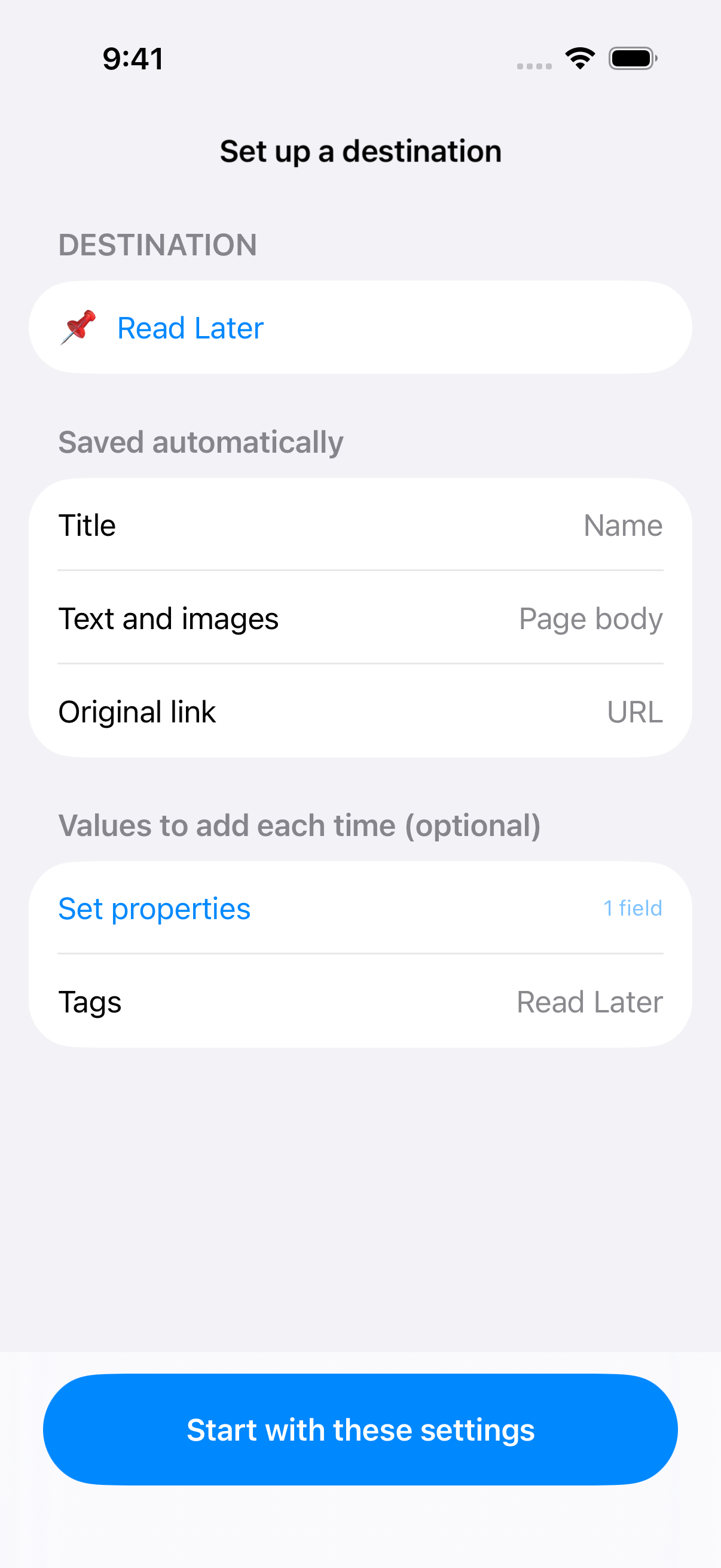
With TapClip, you can set the property values you want on every save. A Read Later tag, or the Project you’re gathering research for, can be applied while you save the article.
Set the values you keep adding →
Start with one tag you always use.
Choose Read Later for your reading queue, or Research for reference material. Fix only the values that belong on every article you send to this destination.
If a category changes from article to article, you don’t need to fix it. There’s no need to configure every property.
Choose a property in your save settings.
- Select your destination databaseUse a database you already work with.
- Open Set propertiesChoose a field, such as Tags, and select a fixed value.
- Finish and save your settingsThe destination screen shows the values you configured.
Articles you save from Safari will receive those values. This is a value you choose in advance, not AI guessing a category from the article.
Gathering one topic? Set its Project, too.
If your database has a Project relation, choose the Project you want the articles linked to. While planning a trip, for example, keep the same travel Project selected.
If a related page is missing, grant Notion access to the related database too. When your research topic changes, review your save settings.
Return to reading, not repeated tagging.
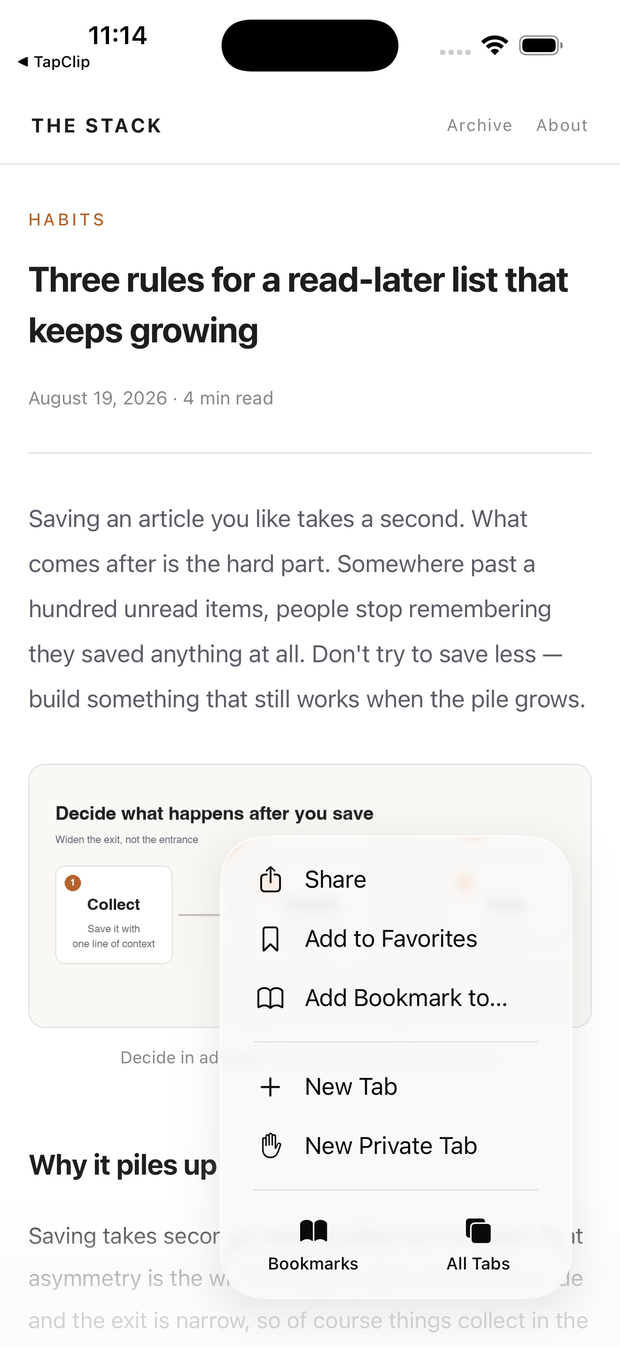
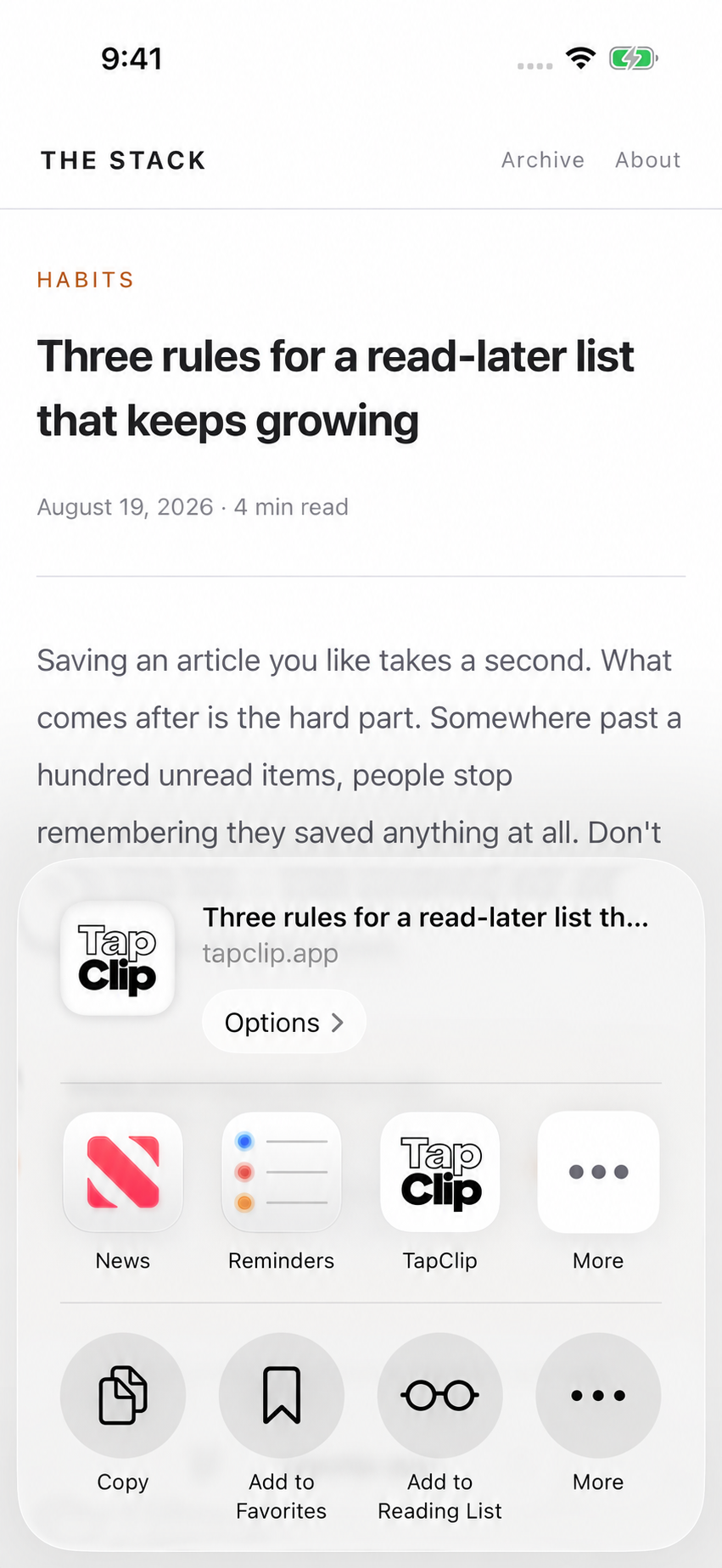
Once setup is done, open your usual article in Safari. Open Share, then tap the TapClip icon in the app row. The article text and your recurring values are saved together.
You no longer need to reopen Notion just to add the same tag after each save.
Choose your recurring values once.
Start with one tag, then save an article you already read. Try up to 20 saves for free.