 TapClip
iPhone guide
Save full articles to Notion from iPhone Safari
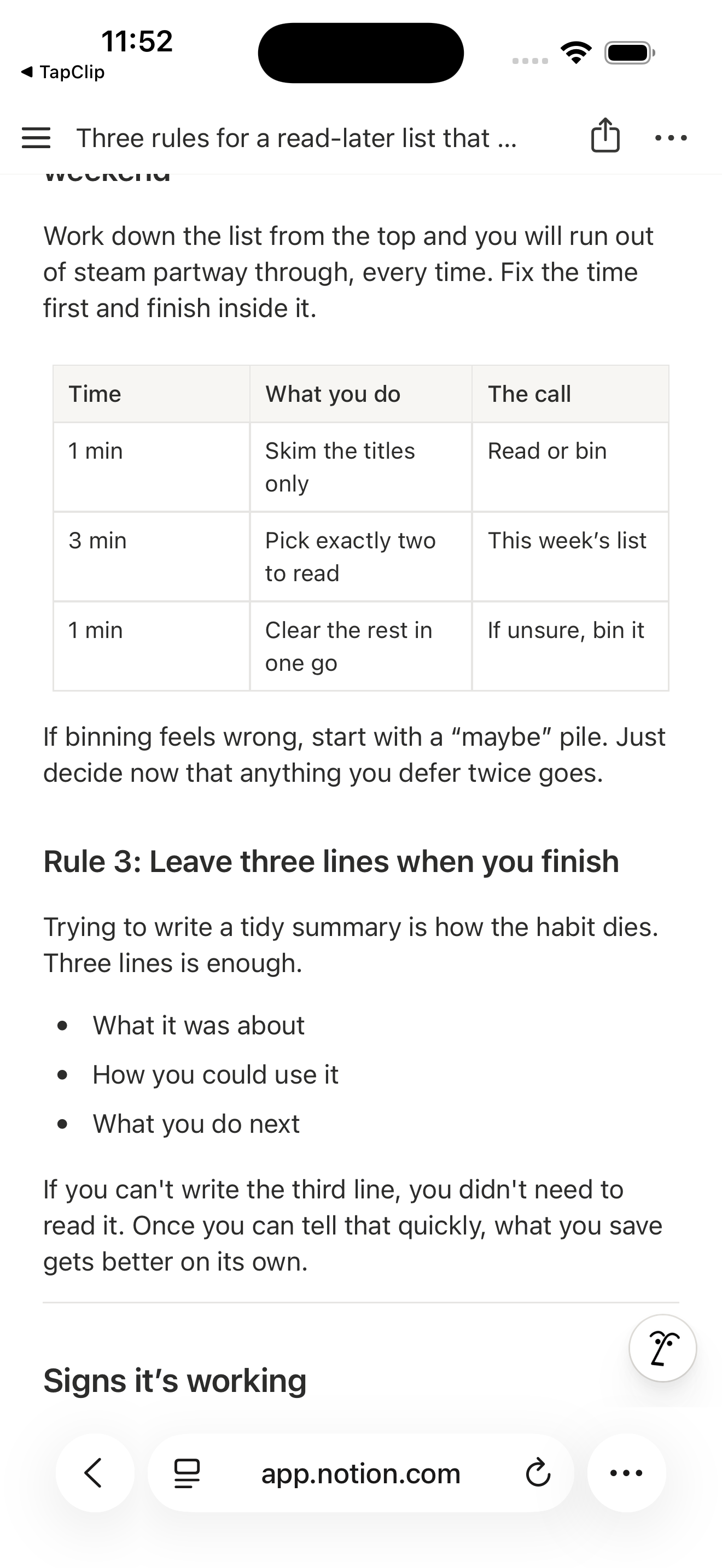
Saved an article to Notion, then opened it to find only a link?
The useful part is the article itself. TapClip saves the text and images displayed in Safari into the body of a Notion page, so you can return to the content, not just its address.
Try saving an article you already read →
Keep the content you want to come back to.
A bookmark takes you back to the original site. A saved article lets you revisit its content in Notion, alongside your other research.
Notion’s own clipper can save page content too, but parts of some pages may be missing. If the articles you read aren’t coming through, another saving method is worth trying.
Choose your destination once.
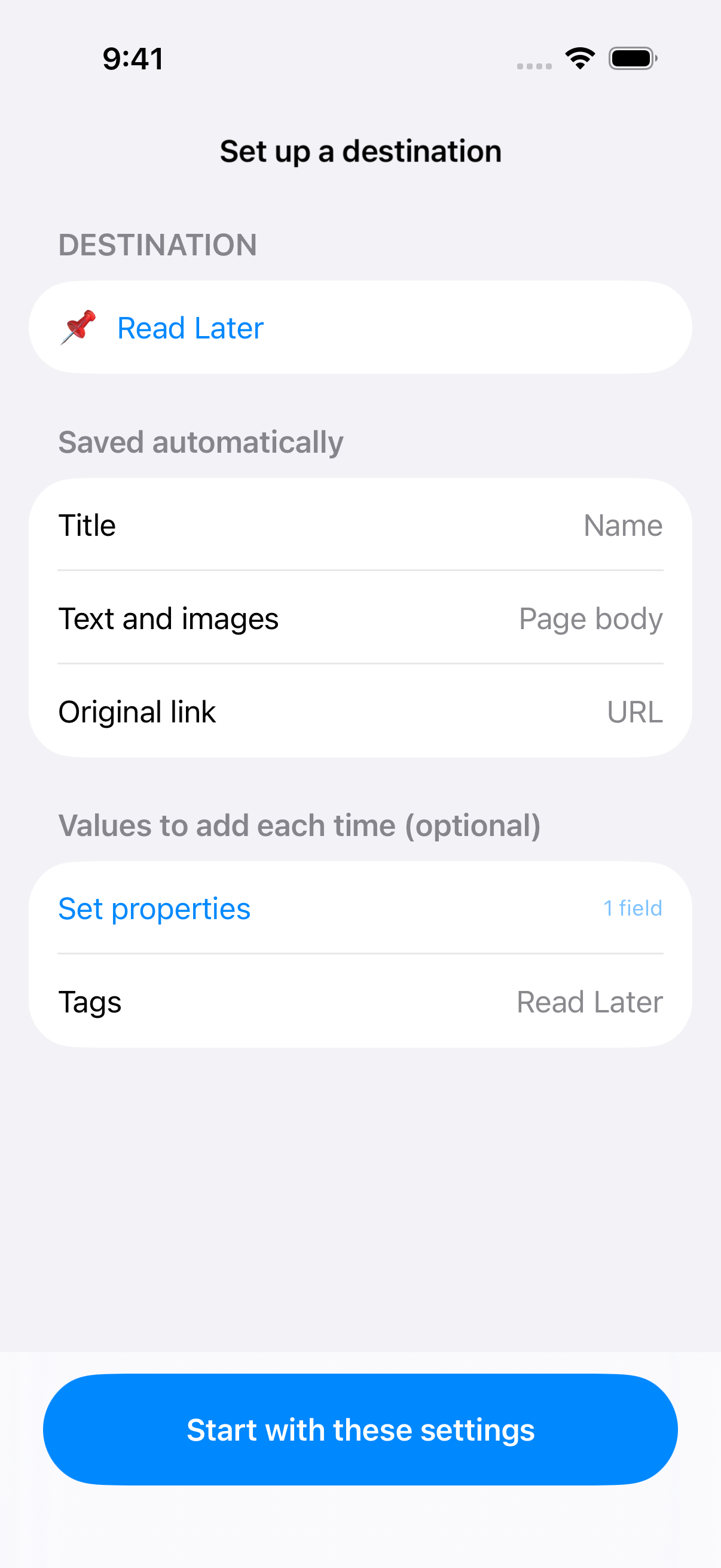
Open TapClip and connect Notion. Allow access to the page containing your destination database, then select that database.
The title goes into the title property; text and images go into the page body. Review the destination and finish setup. You can add recurring tags later.
For the next article, use Safari’s Share menu.
- Open the article in SafariMake sure the text you want to keep is visible.
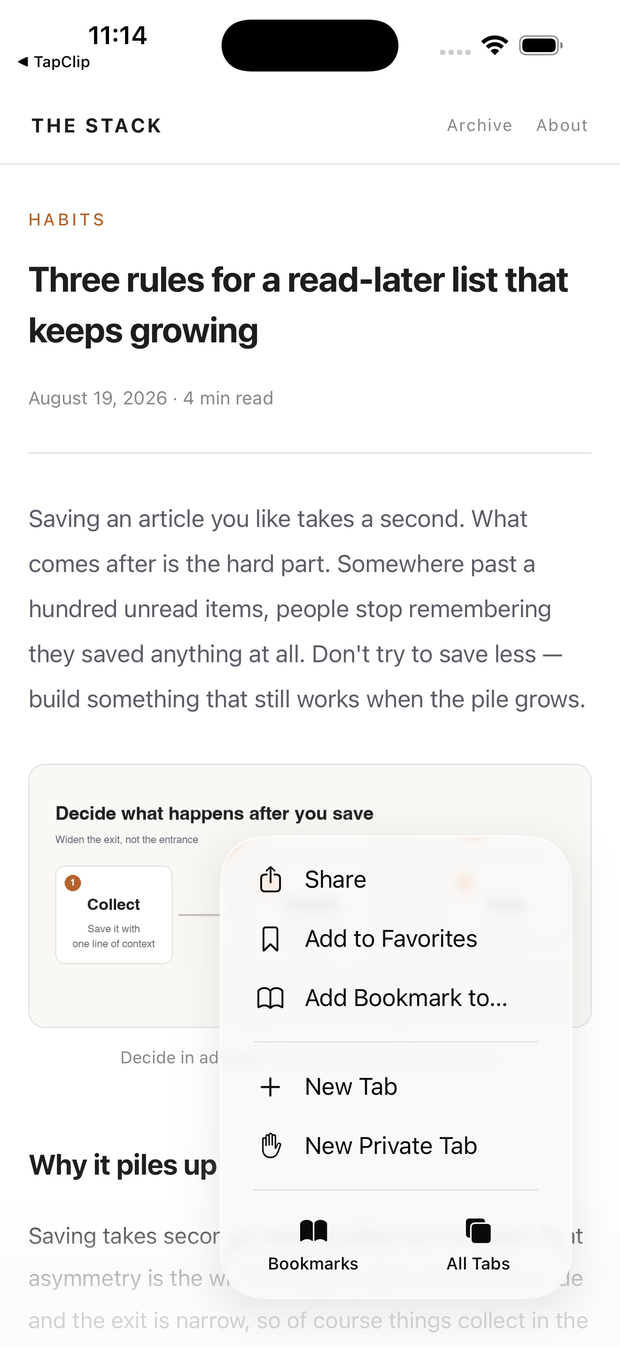
- Open ShareOpen Safari’s “…” menu and choose Share. Some layouts show the Share button directly.
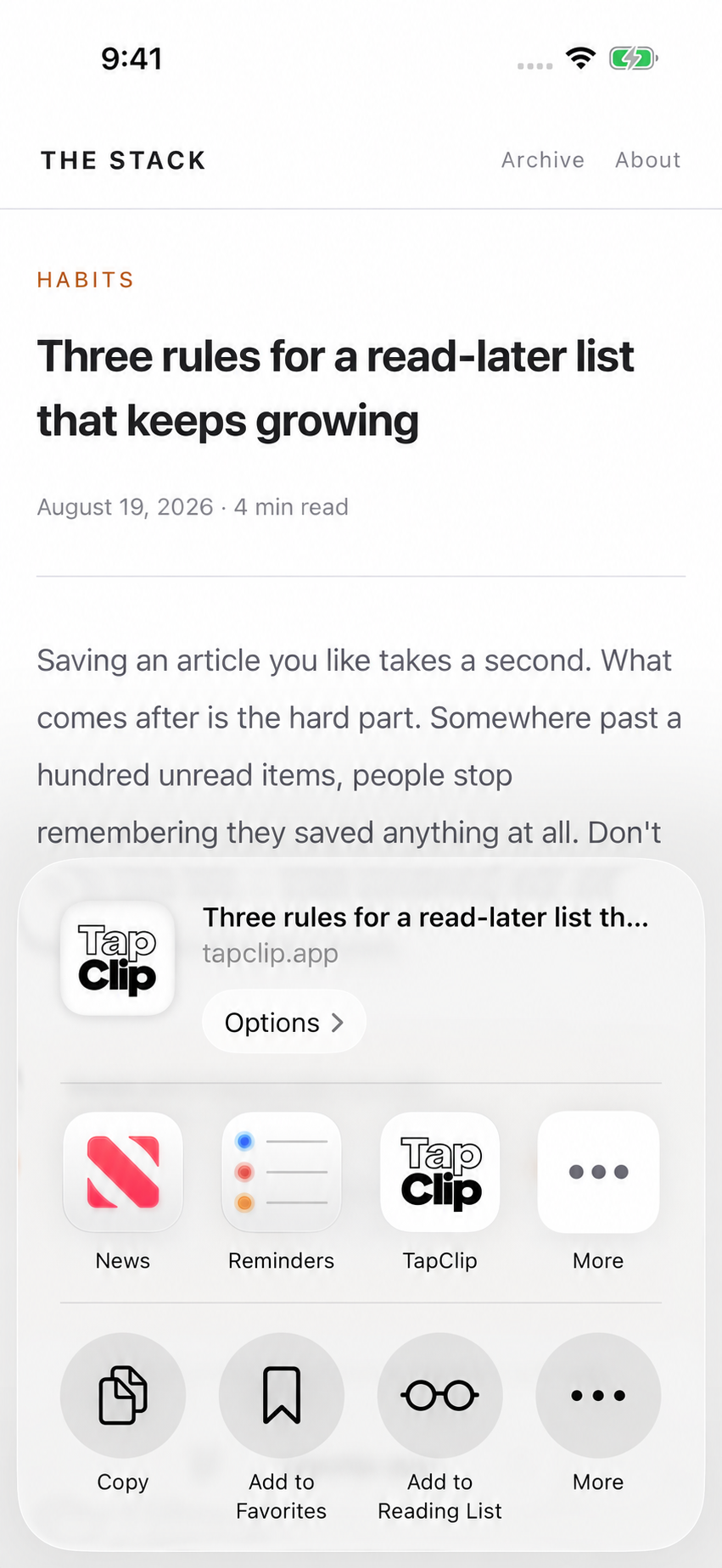
- Tap the TapClip icon in the app rowIn the share sheet, choose TapClip. Saving to your configured destination begins.
- Open the saved page in NotionAfter saving finishes, tap “Open in Notion” to check the article text.
For subscription articles, start with the text you can read.
Sign in to the publisher in Safari and display the article before saving. TapClip does not unlock content you cannot access.
What gets captured depends on the page structure and what has loaded. Start with one of your usual articles and check the saved result.
Keep one article you want to revisit.
Set your destination, then save from Safari. Try up to 20 saves for free.