 TapClip
Tool comparison
Notion Web Clipper, Save.to, or TapClip? Choose how you save
Start with the device you save from and the organizing you do afterward. Here’s how the three options differ.
Choose for the way you save.
Notion’s clipper lets you begin without adding a separate saving tool.
Save.to offers highlighting, property settings, and different forms for different uses.
TapClip keeps Safari-to-Notion saving and recurring values straightforward.
Compare article capture and property settings.
All three are options for saving articles to Notion. The useful distinction is not simply whether text can be captured, but how you configure and organize each save.
| Tool | Article capture | Property settings | Best fit |
|---|---|---|---|
| Notion | Captures pages; some content may be missing | Edit in Notion after saving | Start with the native option |
| Save.to | Articles, highlights, images, and more | Configure tags, relations, and other fields in the extension | Different forms and detailed captures |
| TapClip | Text and images displayed in Safari | Set a destination and recurring values in advance | One regular destination from iPhone |
Saving from iPhone Safari? Try TapClip →
Notion: start with the native Share menu.
On iPhone, choose Notion from Share and select a destination. After saving, open the page in Notion to edit its properties.
Notion’s help currently says tags cannot be added while clipping. If the saved content meets your needs and you prefer organizing afterward, the official option may be enough.
Save.to: more control over what you capture.
Save.to, formerly Save to Notion, supports articles, highlights, images, and database property settings. Different forms can serve different workflows.
It also has a Safari version and an app compatible with iPhone and iPad. It isn’t desktop-only. Check the features available on the device you plan to use.
TapClip: one familiar destination from iPhone Safari.
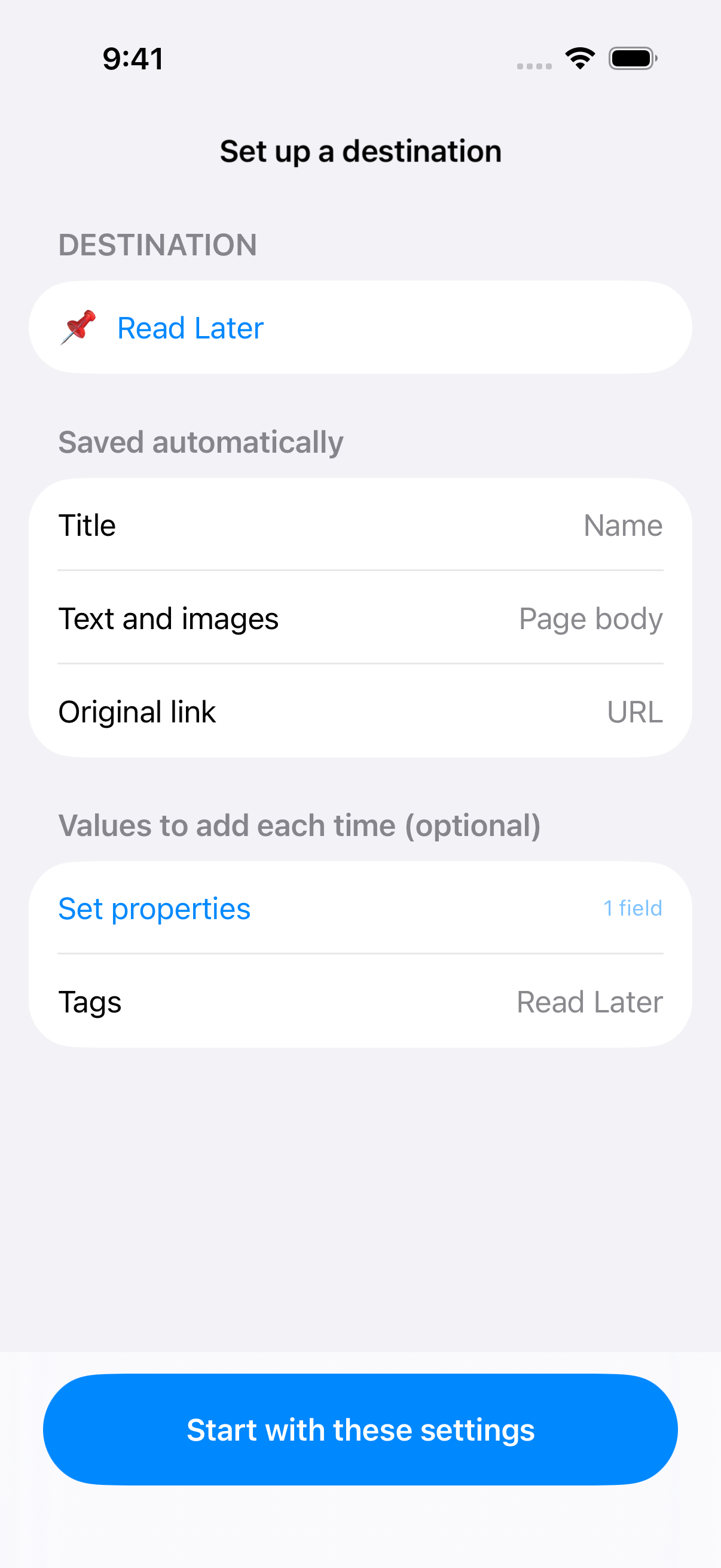
Choose a database and recurring values in advance, then share articles from Safari. TapClip combines article text and images with the tags or Project values you’ve chosen.
It suits people who want a simple route to the destination they use regularly, rather than configuring many different saving workflows.
For subscription articles, test one you normally read.
Sign in to the publisher in Safari and display the text before trying a save. These are saving workflows, not a way to unlock inaccessible content.
Page structure and loading can affect text and image capture. Check the actual saved result rather than assuming a publisher’s name guarantees complete capture.
Start with one article on your iPhone.
Want the text and your recurring classification together? Try up to 20 saves with TapClip for free.

Comparison sources
Based on official information and TapClip’s implementation, checked October 26, 2026. This is not a hands-on benchmark of competing capture results.
NotionSave.toSave.to Safari